Glossary attributes
The Glossary attributes are part of the 'Attributes' section. Attributes from the Glossary type should be configured to use in the context of the Terminology plugin (especially for glossary overview).
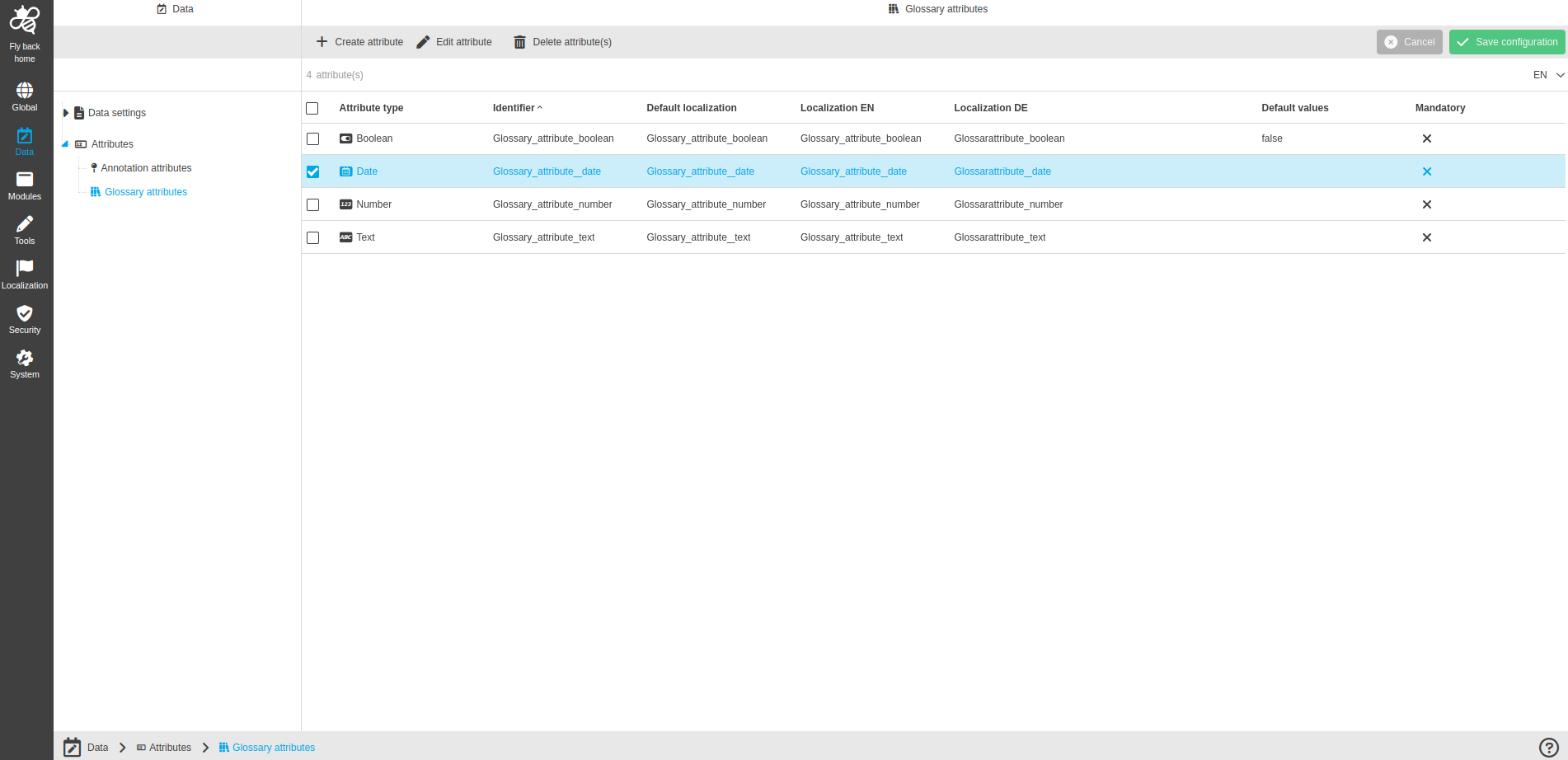
The page contains:
-
the following functions:
Function name |
Description |
Note |
Create attribute |
Function creates a new attribute from Glossary type |
see 'Create attribute' |
Edit attribute |
Function edits created attribute from the Glossary type |
see 'Edit attribute' |
Delete attribute(s) |
Function deletes created attribute(s) from the Glossary type |
see 'Delete attribute(s)' |
-
the table with the following columns with the information about created attributes:
Column name |
Description |
Note |
Attribute type |
Shows created attribute types by icon and name of type |
Available type of attributes:
|
Attribute name |
Shows attribute name which is set during attribute creation |
|
Default localization |
Shows default localization which is set during attribute creation |
Has the same value as the 'Identifier' column |
Localization columns |
Shows language localizations which are set during attribute creation |
All languages which are available as system languages on OMN system are shown in their own column. For example:
|
Default values |
Shows the set defaut value which is set during attribute creation |
The form of the value depends on the attribute type |
Mandatory |
Shows if the attribute has been defined as a mandatory field or not |
In case attribute was defined as mandatory check icon is shown in the column. In case attribute was defined as optional cross icon is shown in the column. |
Available types of attributes for creation:
Attribute type |
Description |
Text |
To enter a text value |
Boolean |
To enter one of 'true'/'false' |
Number |
To enter a numeric value |
Date |
To enter a date value |
|
The different data types are explained here: Data types |
Create attribute
-
Click 'Create attribute' function
-
Select Data type: Text, Boolean, Number or Date
-
Turn on 'Leave modal open for further creation of attributes' toggle (if needed)
-
Function allows to stay the window open after clicking on the 'Create attribute' button to continue creating a new attribute.
-
-
Enter default Attribute name
-
Name needs to be unique
-
Mandatory field
-
-
Enter localizations for each available language in the system (optional), so this localization will be shown in case language is selected in the UI
-
Each language available on the system is listed
-
-
Enter texts for Tooltip (if needed)
-
Click on the 'Create attribute' button
|
Further configuration of annotation attributes differs per type. |
Edit attribute
-
Select an attribute in the table
-
Execute the Edit attribute function
-
Change the available fields
-
Execute 'Save attribute' function
|
Delete attribute(s)
-
Select an attribute (or several ones) in the table
-
Execute the Delete attribute(s) function
-
Click 'Confirm attribute(s) deletion'
| The function is available only when at least one attribute is selected. |
Appearance in the frontend
All details of the Annotation attributes in the frontend can be found here.