Digiflow
Configuration of basic settings
-
A Data RNC and a user is already applied.
-
Mandator creation: Enter Identifier and click "Add mandator".
-
Mandator role: Security → Usable roles → Add → Role name: "admin" → Select User Name → Save Mandator roles
-
Logout-Button: Main Menu → Add → Item identifier: "Logout" → Page plug-in: Select LOGOUT-ACTIVITY System:
-
omn_mail.properties: Mail.ExternalURL= http\://host\:port
-
omn_client.properties: Client.WebClientURL= http\://host\:port
Configuration of Digiflow
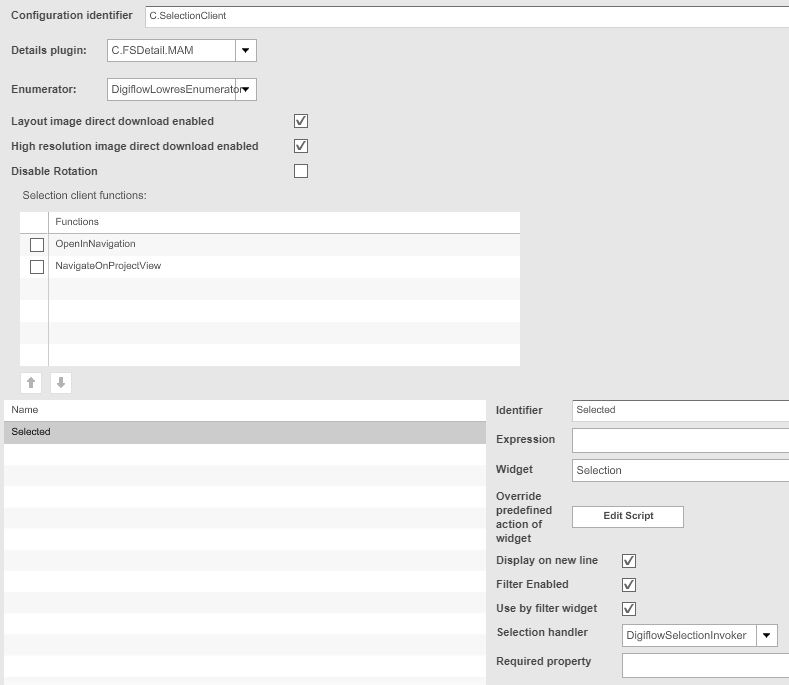
Content plug-ins → SelectionClient → "C.SelectionClient" → Create new configuration
-
Configure like in picture below
Page plug-ins → ExternalLink → "P.ExternalLink.DSC" (Digiflow SyncClient)
-
Enter in URL-field the URL below with correct data
-
URL: http://<hostname>:<port>/webstart/digiflow.jsp?mandatorIdentifier=<mandatorIdentifier>;
Navigate to 'Main menu' → add a new main menu item → item identifier: "Download DSC" → select as Page plug-in 'P.ExternalLink.DSC' → Save main menu
Navigate to Application modules → Digiflow
-
Common: enter Frontend-URL with a "/" at the end in both fields (OMN & Digiflow MAM URL) (i.e.: http://mm-omn-pjd-01:8070/client/Documentation/ )
-
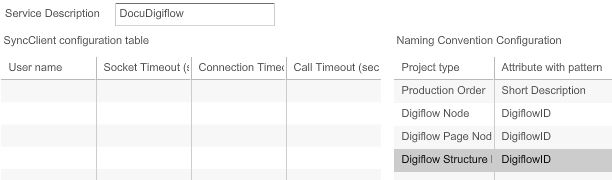
SyncClient Specific: add a service description (i.e.: DocuDigiflow) and add 'attributes with pattern' for 'Naming Convention Configuration' like in picture below
-
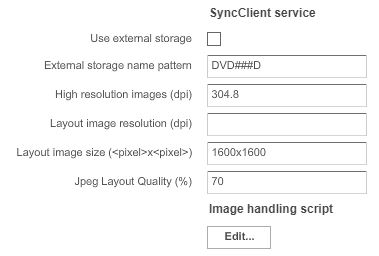
Digiflow MAM Specific: add three data like in the picture below
-
Save configuration
Navigate to Application modules → Workflow (+) → Workflow Definitions
-
Create Workflow → "DFLPageBasedImg" (The exactly same name is required!) → Ok
-
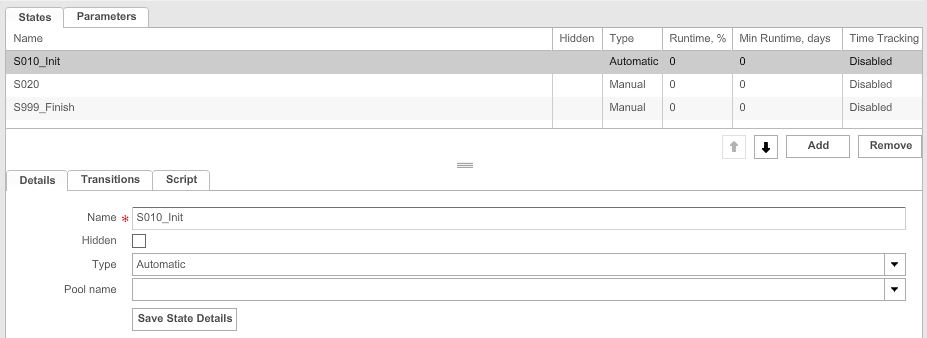
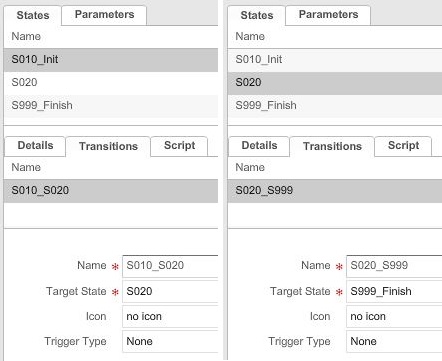
Add three states (picture below):
-
S010_Init: Change type to automatic and enter name (picture below)
-
S020: just enter name and let type manual
-
S999_Finish: just enter name and let type manual
-
Save State Details
Add a transition for S010_Init and S020 (picture below) → Save transitions → Press Release
Page plug-ins → WFLStatus → "P.WFLStatus" → Create new configuration
-
Plugin configuration → add two labels:
-
Expression: Workflow type
-
Expression: Workflow Name
-
Enabled workflows → Check 'DFLPageBasedImg'
-
Save configuration
Navigate to 'Main menu' → add a new main menu item → item identifier: "Workflow" → select as Page plug-in 'P.WFLStatus' → Save main menu
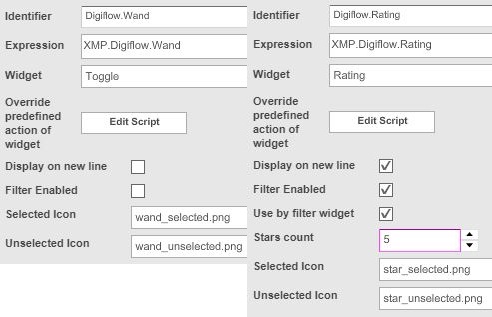
Navigate to C.SelectionClient → Add to table two objects like in picture below:
Hint: If the exception (Widgets with similar expression are already configured) appears after second adding, it could be ignored and executed anyway.
Permissions:
-
Add a second test user to OMN (Administration → Users and Groups → Create)
-
Change to your mandator → Security
-
Usable roles → Add/select a usable role → Check the new created user → Save
-
Permissions → ProjectTypes → Check 'Controlled by ACL' for 'Digiflow Node', 'Digiflow Page Node' and 'Digiflow Structure Node'
-
-
Save security permissions
-
Navigate to P.ProjectNavigation → Check "ACLProjectFunction" → Save configuration
-
Navigate to ProjectTypes → for all three Digiflow project types → Functions → Check 'ACLProjectFunction' → Save configuration