Concepts
This page describes basic OMN development concepts.
Preview generation mechanism
Introduction
OMN is able to show previews for uploaded files. It supports a lot of file extensions and has own mechanism for preview generation for each file type. The preview generation process is starting when user activates a corresponding action. Such of this action is activating when user uploads a file through CheckIn/Upload function. Further we will use this action as an entry point in the preview generation process.
From upload to previews
The preview generation operation is performed in the OMN Synchronizer process.
| This chapter describes the on-prem synchronizer. With the Lambda synchronizer introduced in OMN 7.0 the previews are generated by AWS Lambda functions instead of the plugins described below; for its custom preview extension point see Custom Preview Generation with the Lambda Synchronizer in the OMN 7.0 documentation. |
To start this process, the OMN main application asks the synchronizer to process the files. It will create and start performing the corresponding task of saving the file. The related state diagram would look like this.
| Pay attention to notes on diagram. |

General states of checkin processing are marked in green. Preview generation states are marked in blue. The other states are marked in purple.
Preview generation process starts in GeneratePreviewsTask object. It is created in implementation of the CheckinFacade interface and immediately called.
The following diagram shows the main tasks performed and the classes that perform these activities.

Take a look at the GeneratePreviewsTask object. It goes through the plugin configurations and tries to find a plugin that can generate a preview for the uploaded file. When GeneratePreviews receives it, it calls the PreviewPluginStarter, which does the general steps to generate the preview, and then starts the generation. Generation is done in implementations of the PreviewPlugin interface. PreviewPluginStarter instantiates the corresponding PreviewPlugin implementation (as per the preview plugin configuration) and then calls its methods.
Each preview plugin implementation implements its own generation logic. To understand the generation mechanism, we need to dive deeper into these implementations.
Preview Plugin configuration
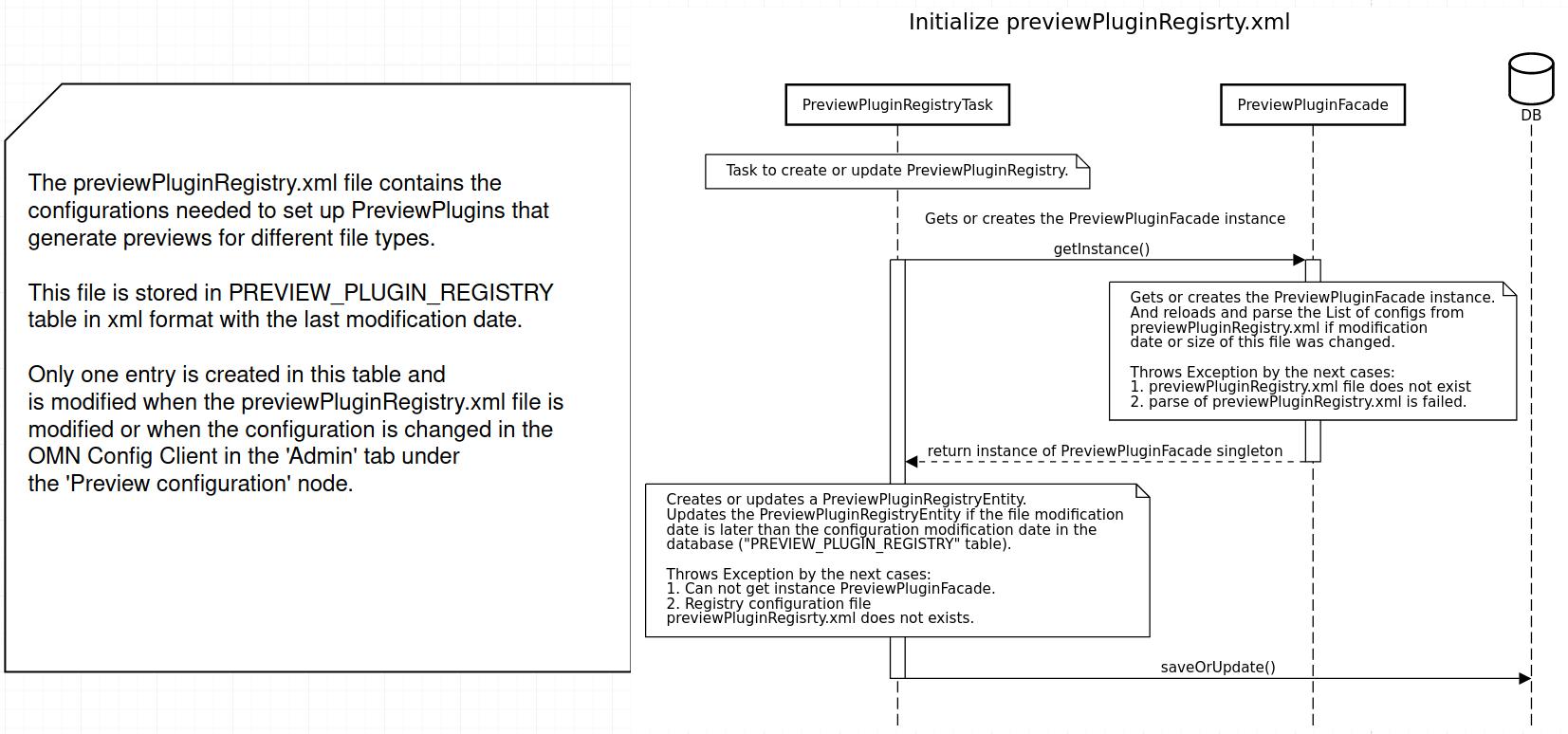
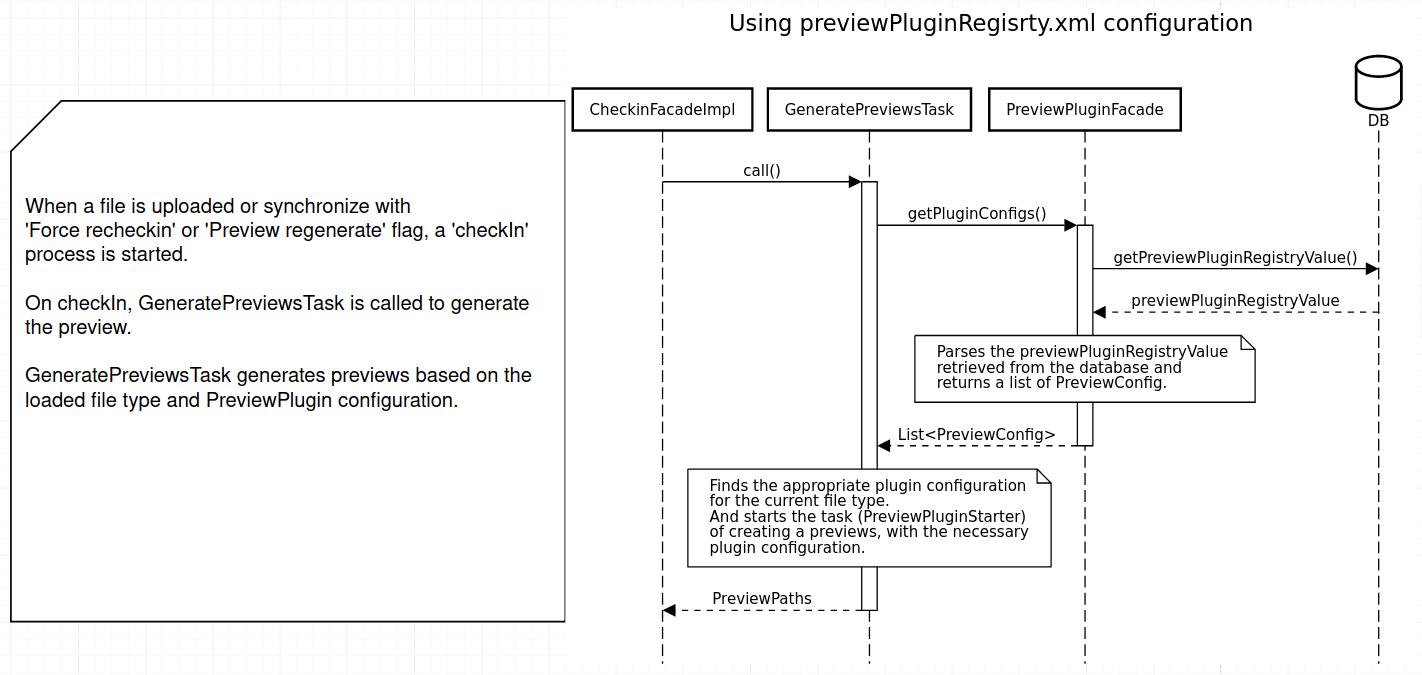
The configurations are stored in PREVIEW_PLUGIN_REGISTRY table. It contains information about each plugin type. Each plugin type has its own name, corresponding Java class, supported file types and a set of custom options.
The GeneratePreviewsTask object iterates in the order specified in PREVIEW_PLUGIN_REGISTRY table. The first plugin on the list that can process the file will take it.
After that, PreviewPluginStarter instantiates corresponding Java class by class name property in configuration.
By default, the order is the next:
Number |
Name |
Class Name |
Supported file types |
|---|---|---|---|
1 |
ImageMagick based preview plugin |
com.meylemueller.isy.sync.preview.impl.ImagePreviewPlugin |
EPSF, TIFF, JPEG, BMP, GIFf, JP2, PCT, ..CT, PNGf, WebP, XCF, PSB, XBM, PICT |
2 |
DTS Tiff preview plugin |
com.meylemueller.isy.sync.preview.impl.DTSTiffPreviewPlugin |
TIFF |
3 |
Postscript preview plugin |
com.meylemueller.isy.sync.preview.impl.PSPreviewPlugin |
EPSF, EPSP |
4 |
ImageMagick based Photoshop preview plugin |
com.meylemueller.isy.sync.preview.impl.IMPhotoshopPreviewPlugin |
8BPS |
5 |
Photoshop preview plugin |
com.meylemueller.isy.sync.preview.impl.PhotoshopPreviewPlugin |
8BPS |
6 |
PDF preview plugin |
com.meylemueller.isy.sync.preview.impl.PDFSWFPreviewPlugin |
PDF, FDP |
7 |
PrePress preview plugin |
com.meylemueller.isy.sync.preview.impl.PrePressPreviewPlugin |
XDOC, XPRJ, InDd, InDn, IDd1, IDd2, IDd3, IDd4, IDd5, IDd6, IDd7 |
8 |
OpenOffice Plugin |
com.meylemueller.isy.sync.preview.impl.OpenOfficePreviewPlugin |
DOC, EXCL, PPT, OOF, MSOFX, MSOF |
9 |
Video Plugin |
com.meylemueller.isy.sync.preview.impl.VideoPreviewPlugin |
3G2, 3GG, ASF, ASX, AVI, FLV, MOV, MP4, MPG, MPEG, OGM, QT, SWF, VOB, WMV, VCD |
10 |
Audio preview plugin |
com.meylemueller.isy.sync.preview.impl.AudioPreviewPlugin |
MP3, WMA, AAC, OGG, WAV |
11 |
3D preview Plugin |
com.meylemueller.isy.sync.preview.impl.ThreeDPreviewPlugin |
3D |
12 |
360D preview Plugin |
com.meylemueller.isy.sync.preview.impl.ThreeSixtyPreviewPlugin |
360D |
Each plugin generates a command for corresponding software. (For example ImageMagick). Watch the table below. It shows differences and features of different preview types.
|
Blue - source or result file. Green - Global options from config-client. (Layers) Purple - Preview specific options from config-client. (quality, alpha) Any color Bold - Deviation from the template. |
File types |
Preview plugin |
Temp file |
original-vector |
original-pixel |
original |
coarse |
thumbnail |
Comments |
|---|---|---|---|---|---|---|---|---|
EPSF, JPEG, BMP, JP2, PCT, ..CT |
ImageMagick based preview plugin |
convert -colorspace srgb -size 3000x2427 pattern:checkerboard source -composite -profile config/imagemagick/sRGB_IEC61966-2.1.icc tempDir/tempFile.jpeg |
Not generated |
convert source/tempFile -profile config/imagemagick/sRGB_IEC61966-2-1_withBPC.icc -colorspace srgb -density 300x300 -alpha off -layers merge -resize 1280x1024> -quality 75 -strip tempDir/original-pixel.jpeg |
convert source/tempFile -profile config/imagemagick/sRGB_IEC61966-2-1_withBPC.icc -colorspace srgb -density 300x300 -alpha off -layers merge -resize 1280x1024> -quality 75 -strip tempDir/original.jpeg |
convert source/tempFile -profile config/imagemagick/sRGB_IEC61966-2-1_withBPC.icc -colorspace srgb -density 300x300 -alpha off -layers merge -resize 480x480 -quality 75 -strip tempDir/coarse.jpeg |
convert originalPixel -profile config/imagemagick/sRGB_IEC61966-2-1_withBPC.icc -colorspace srgb -alpha off -layers merge -resize 40x40 -quality 75 -strip tempDir/thumbnail.jpeg |
1. (For ImageMagick based preview plugin) Create temp file and then generate previews from it, depend on “HandleClippingPath” and “HandleTransparency”, options in config-client. 2. IMRasterPreviewTypeCommands class - add colorspace. 3. PreviewPluginJpgStrategy class - add density/null layers, resize/resample, alpha options. 4. IMsRGBPreviewTypeCommands class - add profile options. 5. PreviewPluginPngStrategy class - add density/null, background, layers, resize/resample, alpha options. |
PNGf, TIFF, GIFf |
convert source/temp.jpeg -profile config/imagemagick/sRGB_IEC61966-2-1_withBPC.icc -colorspace srgb -alpha off -density 300x300 -background none -layers merge -resize 1280x1024> -quality 75 -strip tempDir/original-pixel.png |
convert source/temp.jpeg -profile config/imagemagick/sRGB_IEC61966-2-1_withBPC.icc -colorspace srgb -density 300x300 -alpha off -layers merge -resize 1280x1024\> -quality 75 -strip tempDir/original.jpeg |
convert source/temp.jpeg -profile config/imagemagick/sRGB_IEC61966-2-1_withBPC.icc -colorspace srgb -density 300x300 -alpha off -layers merge -resize 480x480 -quality 75 -strip tempDir/coarse.jpeg |
convert original-pixel.png -profile config/imagemagick/sRGB_IEC61966-2-1_withBPC.icc -colorspace srgb -alpha off -layers merge -resize 40x40 -quality 75 -strip [blue]#tempDir/thumbnail.jpeg |
||||
PDF, FDP |
Pdf preview plugin (For each page) |
gs -dUseCIEColor -dSAFER -dBATCH -dNOPAUSE -dEPSCrop -dEPSDEBUG -dPrinted\=true -sDEVICE\=jpeg -dTextAlphaBits\=4 -dGraphicsAlphaBits\=4 -r72x72 -sOutputFile\=tempDir/tempPreview%03d source |
gs -dBATCH -dNOPAUSE -dQUIET -sDEVICE\=pdfwrite -dPDFSETTINGS\=/default -dEmbedAllFonts\=true -dSubsetFonts\=false -sOutputFile\=tempDir/original-vector%03d.pdf source |
convert tempFile -profile config/imagemagick/sRGB_IEC61966-2-1_withBPC.icc -colorspace srgb -density 300x300 -alpha off -layers merge -resize 1280x1024> -quality 75 -strip tempDir/original-pixel001.jpeg |
pdf2swf -G -p1 -j75 -s disablelinks -Q\ 60 source -o tempDir/original001.swf |
convert tempFile -profile config/imagemagick/sRGB_IEC61966-2-1_withBPC.icc -colorspace srgb -density 300x300 -alpha off -layers merge -resize 480x480 -quality 75 -strip tempDir/coarse001.jpeg |
convert originalPixel -profile config/imagemagick/sRGB_IEC61966-2-1_withBPC.icc -colorspace srgb -alpha off -layers merge -resize 40x40 -quality 75 -strip tempDir/thumbnail001.jpeg |
|
DOC, EXCL, PPT, OOF, MSOFX, MSOF |
OpenOffice Plugin |
soffice --headless --norestore --convert-to pdf source --outdir tempPDF |
Process as Pdf FileType |
|||||
8BPS |
ImageMagick based Photoshop preview plugin |
Not generated |
convert source/temp.jpeg -profile config/imagemagick/sRGB_IEC61966-2-1_withBPC.icc -colorspace srgb <no alpha> -density 300x300 -layers merge -resize 1280x1024> -quality 75 -strip tempDir/original-pixel.jpeg |
convert source/temp.jpeg -profile config/imagemagick/sRGB_IEC61966-2-1_withBPC.icc -colorspace srgb <no alpha> -density 300x300 -layers merge -resize 1280x1024\> -quality 75 -strip tempDir/original.jpeg |
convert source/temp.jpeg -profile config/imagemagick/sRGB_IEC61966-2-1_withBPC.icc -colorspace srgb <no alpha> -density 300x300 -layers merge -resize 480x480 -quality 75 -strip tempDir/coarse.jpeg |
convert original-pixel.jpeg -profile config/imagemagick/sRGB_IEC61966-2-1_withBPC.icc -colorspace srgb <no alpha> -layers merge -resize 40x40 -quality 75 -strip tempDir/thumbnail.jpeg |
||
How to add new format support
-
Add a new file type to the FileType enum.
-
Check which plugin will generate previews for the new file format.
-
Add the new file format to the *PreviewPlugin configuration in the previewPluginRegistry.xml file. The 'supportedFileTypes' property stores the supported types for preview plugin.
<PluginConfig pluginName="OpenOffice Plugin" previewPluginClassName="com.meylemueller.isy.sync.preview.impl.OpenOfficePreviewPlugin" supportedFileTypes="DOC,EXCL,PPT,OOF,MSOFX,MSOF,TXT,RTF,HTML,SVG" instanceCount="1"> ... </PluginConfig> -
Create a new *ObjectEntity if you plan to create a new discriminator. Example:
@Entity @DiscriminatorValue(ISYExampleObjectEntity.DISCRIMINATOR) public class ISYExampleObjectEntity extends ISYFileObjectEntity { public static final String DISCRIMINATOR = "EXAMPLE"; public ISYExampleObjectEntity() { } public ISYExampleObjectEntity(RootNodeConfiguration rootNodeConfiguration, PathString pathString, String name, boolean hidden) { super(rootNodeConfiguration, pathString, name, hidden); } }-
Add a created *ObjectEntity to the owner.xml file to further get the discriminator by the object type name.
<data> <list> <owner class="com.meylemueller.obj.isy.ISYObjectEntity" label="ISY Object" simpleName="ISYObject" guid="D6806F56-B5D2-F1DD-8F03-DEF332AF6EA9"/> ... <owner class="com.meylemueller.obj.isy.ISYTxtObjectEntity" label="ISY TXT File" simpleName="ISYTxtObject" guid="204F843E-8244-4AB7-BF2D-7A507ACD03C1"/> </list> </data> -
Add *ObjectEntity to the entity-class.list file to load entities into the RegisterPluginEntitiesProcessor.
-
Create a changeSet to register *ObjectEntity in the SUI_GUID table. Example:
<databaseChangeLog xmlns="http://www.liquibase.org/xml/ns/dbchangelog" xmlns:xsi="http://www.w3.org/2001/XMLSchema-instance"
				   xsi:schemaLocation="http://www.liquibase.org/xml/ns/dbchangelog http://www.liquibase.org/xml/ns/dbchangelog/dbchangelog-3.3.xsd">

	<changeSet id="register-guid.ownerISYExampleObjectEntity" author="example">
		<customChange class="com.meylemueller.database.liquibase.change.RegisterGuid">
			<param name="identifier" value="113F843E-8194-1AB7-B32D-6A091ACD08C5"/>
			<param name="description" value="Owner: com.meylemueller.obj.isy.ISYExampleObjectEntity"/>
		</customChange>
	</changeSet>

</databaseChangeLog>
-
-
Add a new file type to com.meylemueller.obj.isy.ISYObjects#DISCRIMINATORS_MAP to match its *ObjectEntity.
public class ISYObjects { private static final Logger LOGGER = getLogger(ISYObjects.class); private static final Map<FileType, Class<? extends ISYFileObjectEntity>> DISCRIMINATORS_MAP = fillDiscriminatorsMap(); private static Map<FileType, Class<? extends ISYFileObjectEntity>> fillDiscriminatorsMap() { Map<FileType, Class<? extends ISYFileObjectEntity>> result = new HashMap<>(); Class<? extends ISYFileObjectEntity> entityClass = ISYPDFDocumentObjectEntity.class; result.put(FileType.EXAMPLE, entityClass); //... return result; } } -
Determine which *ProbePlugin will be used to determine the file type. Update the plugin configurations in the probePluginRegistry.xml file if necessary. If TikaProbePlugin is used to determine the file type, a new file type must be added to TikaProbePlugin#MIME_TYPE_INDEX according to its mimeType. MimeType is the prefix that tika uses to determine the file type.
-
Extend the converter in the FileType2FileInfoClassConverter#convert method according to the new type and requirements.
Calculating Previews geometry (width and height)
The calculation of preview geometry is processed asynchronously. This logic is implemented as ProcessDefinition and executed by ProcessManager in a separate process pool. The process pool name is save-preview-geometry.
| To know more about process pool in OMN please watch related documentation: Process Pool docu |
The class SavePreviewGeometryProcessDefinition extends BaseProcessDefinition and is available for execution asynchronously by ProcessManager. A ready instance of the class with information about isyObject is passed in ProcessManager#startProcess method and calculation begins.
SavePreviewGeometryProcessDefinition#createProcess method creates implementation of Process interface. Here is the main logic of geometry calculation.
State diagram is the next:

|
To know for which Preview Types calculates geometry, OMN uses "Synchronizer.PreviewTypesForGeometryCalculation". The default value is: Synchronizer.PreviewTypesForGeometryCalculation=THUMBNAIL,COARSE,ORIGINAL_PIXEL You can redefine it in the config file. |
| Geometry calculating does not support ORIGINAL_VECTOR and ORIGINAL_MULTIMEDIA Preview types. |
To calculate the geometry OMN uses com.meylemueller.util.ImageMagickGeometryUtil class and getFileGeometry() method.
Pair<Long, Long> getFileGeometry(File file, FileType fileType) throws WrongFormatException
It returns a Pair of width and height of an image.
To get geometry from a file it uses the ImageMagick tool. It builds a console command and then executes it. The command is the next:
identify -format Geometry:\ %wx%h -quiet _pathToFile_
How to update ImageMagick
Instruction with archive
-
Download zip from omn-web/omn-sync.
-
Unzip the archive on the system.
-
Run install.sh script.
-
If ImageMagick is installed, the script will remove it and update it with a new one.
-
If ImageMagick is not installed, a new version of ImageMagick will be installed.
-
-
To check the version use below command:
identify -version
Instruction without archive
-
Remove existing ImageMagick with dependencies:
yum remove ImageMagick ImageMagick-libs
-
Download and install latest remi-release from http://rpms.remirepo.net/enterprise/7/remi/x86_64/ :
-
Download and install latest rpmfusion-free-release from https://download1.rpmfusion.org/free/el/updates/7/x86_64/r/:
-
Install ImageMagick7 rpm package
yum -y --enablerepo=remi install ImageMagick7
-
Install ImageMagick7-heic rpm package:
yum -y --enablerepo=remi install ImageMagick7-heic
-
To check the version use below command:
identify -version