System Requirements
-
RHEL with SystemV or systemd
-
Java 8
-
OMN with OMN-EAI and OMN Core API installed
-
1 GB RAM at least
Installation
Simply run yum install cmis-server --nogpgcheck to install the server via Yum. This will install package 'cmis-server'. So to remove run yum remove cmis-server.
The RPM will also create SystemV (RHEL < 7) or systemd (RHEL >= 7) services.
Configuration
For configuration see CMIS Configuration.
Starting/Stopping
Start/Stop/Restart is described in chapter CMIS Server Start/Stop.
After starting please wait 1 minute and check if the service could successfully be started by using the 'status' cmd (service cmis-service status)
To check if the service is available you can call http://<hostname>:<port>/cmisAtom in a browser.
Default port is 8082. But you can adjust it as described in Configuration part.
There you should now see a login dialog which asks for credentials. If so the service was successfully started and is available for clients.
Running behind a HTTP/HTTPs Proxy
If the CMIS Server is running behind a proxy the original Host-RequestHeader should be preserved. For Apache HTTPD this can be achieved by setting 'ProxyPreserveHost' to ON.
Otherwise you might get a "Redirect not supported" exception on Client side (for AtomPub binding and OpenCMIS client).
Manual Test with CMIS Workbench Client
The CMIS Workbench is CMIS desktop client for developers. It is a repository browser and an interactive testbed for the OpenCMIS client API.
-
Download the CMIS workbench zip file from the Apache Chemistry website (direct DL-Link here).
-
Unpack the contents of the zip file to a new directory.
-
Navigate to the directory and run the following command to install the workbench:
Unix: workbench.sh
Windows: workbench.bat
-
During run: In the URL field, enter the apollon CMIS URL: Default: http://<hostname>:8082/cmisAtom
(A list of all CMIS Server installation with its URLs is available Active CMIS Server Installations.)
Enter the user name and password (whatever was configured in ./etc/users.properties)
Click Load Repositories.
Click Login.
All repositories which are configured for this user should be listed. If this user is not configured for any repository the repo list will be empty.
-
In the CMIS workbench, check that you can connect to the apollon repository by running CMIS functions such as navigating:
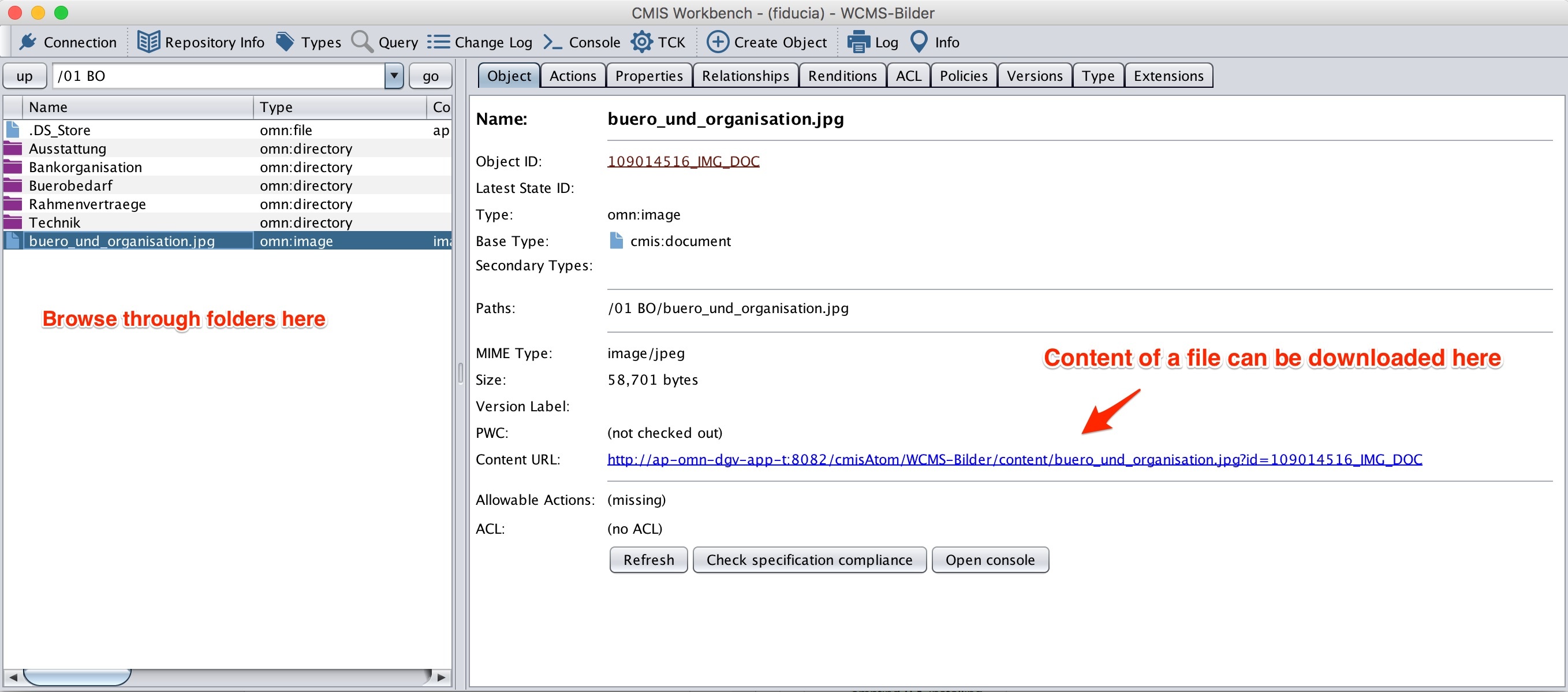
-
Apertures for a selected Asset can be tested by selecting the "Relationships" tab. A table is displayed where a field in the "Target" column should be clicked and the aperture then can be downloaded by clicking the "Content URL".